
Imagine a world where the essential data captured on a clipboard in a hazardous plant or a tally sheet on a construction site can be instantly digitized with a simple photo.
Photo Fill with AI is built for these realities, empowering workers and streamlining operations in ways traditional mobile apps can’t.
Feature Details
| Availability | Pro Feature |
| Supports | Populating form fields with photos and voice |
Enabling Fill with AI
Enabling Fill with AI is done on a form level when designing a data entry form.
- On a Form’s Designer > Select Title Bar
- Under Basic Properties (on the right) > tick Fill with AI
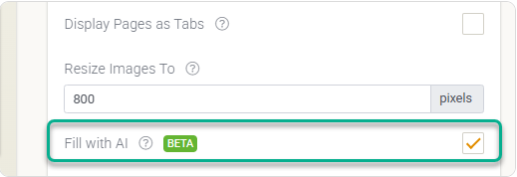
When enabled, a Fill with AI icon will appear at the bottom-right of the form in the mobile app.
Tips for Photo Capture
- Check Your Lighting: Natural light is best. On a job site, try to avoid heavy shadows from equipment or your own hands. If it’s dark, use the in-app flash to make the text pop.
- Flatten the Document: AI handles wrinkles well, but deep folds can “cut” words in half. Briefly smoothing out a crumpled delivery slip before snapping the photo significantly improves character recognition.
- Mind the Angle: Aim for a “top-down” bird’s-eye view. While the AI can correct for some perspective skew, keeping the phone parallel to the paper ensures that the data in the tables (such as quantities and unit prices) remain perfectly aligned.
- Steady Your Aim: Wait for the camera to autofocus. A blurry image is the number one cause of “misread” numbers—especially critical when capturing $600 vs. $500.