
Form Connector – Google Drive automatically sends completed form files and data to Google Drive for secure storage, organization, and easy team access.
After adding and authenticating a Google connection, your forms can push output files like PDF, TXT, Word, JSON, XML, CSV, or XLSX to your Google Drive account.
Adding a Google Form Connector
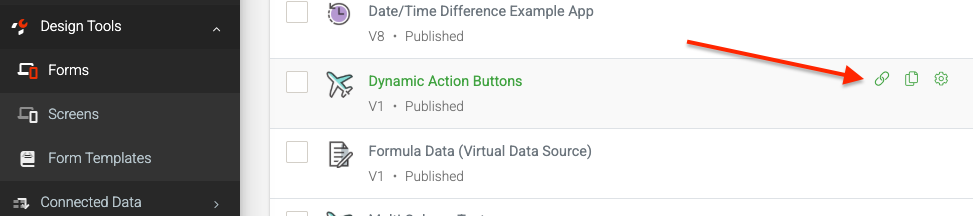
- Navigate the side menu to Design Tools > Forms
- Hover over a form and click the “Connect” icon link ()
- In Form Connectors, hit the “Add Connector” button (top right)
- Select the relevant option to add the connector
This will refresh the page with the newly added connector ready for configuration.
Nothing has been saved at this stage, so save your connector after making any changes to enable or update it.
Alternatively, if you’re busy designing the form or editing its settings, navigate to the Connectors page under its title.
Configuring
After adding the form connector, configure the connector. Configure the connector as shown below:
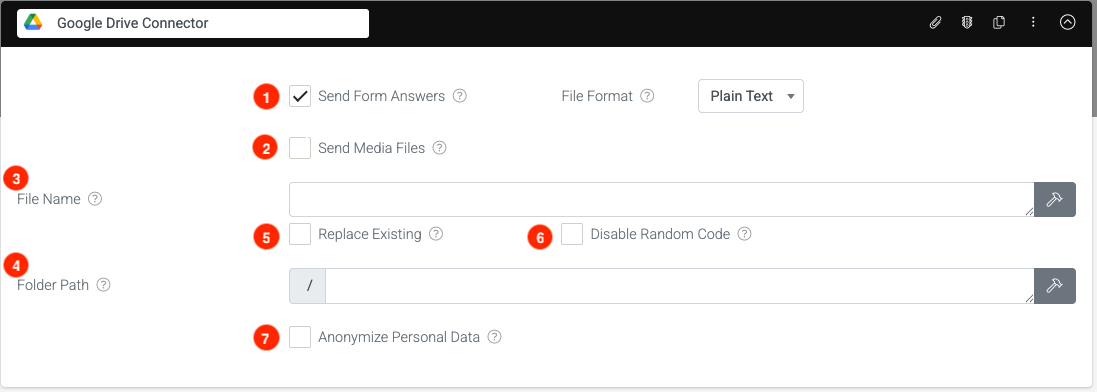
1. Send Form Answers
You can choose what format you want your Form entry data to be sent as:
File Format | Description |
| CSV | Send form data in a .csv attachment. |
| JSON | Send form data in a .json attachment |
| Exel | Send form data in an .xlsx attachment. |
| Word | Send form data as a .docx attachment. |
Send form data as a .pdf attachment. | |
| Plain Text | Send form data as plain text. |
| XML | Send form data as an .xml attachment. |
2. Send Media Files
Allows you to attach individual media files to the email.
With this option enabled, the Connector will send/attach all media captured in the Form entry (photos, videos, etc.) as separate files. This is in addition to any generated answer/template output of the connector.
| ℹ️ Anonymize Data If the Anonymize Personal Data option is enabled, media files marked as Personal Data will be excluded. |
3. File Name
Allows you to specify the names of the media files to be uploaded.
4. Folder Path
Enter the folder path under your Bucket that you wish to organize your file within: ‘Bucketname/FolderName/FileGoesInThisOne’
5. Replace Existing
By default, any existing files with the same name as those generated by this Connector will be overwritten. If this box is unchecked, new files will always be created, regardless of whether an existing file with the same name exists.
6. Disable Random Code
Disable the default system behavior of appending a 6-character random code to the generated file name.
e.g., instead of ‘FileName-abc123.pdf’, the file would be generated as ‘FileName.pdf’
7. Anonymize Personal Data
If enabled, data from fields marked as Personal Data will be converted to a non-human-readable format to aid privacy.
More information on Outputting Data with Templates and Run Conditions may be of interest to you.