
Our platform allows for simple integration and rapid setup of a one-way synchronization with QuickBooks data for the screens you design.
Once you have added and authenticated a QuickBooks Connection, you can include a QuickBooks Data Source Connector to regularly pull data into a data source. This method ensures that your data source remains automatically updated until either the Connector or Connection is deleted.
Adding a Connector
Data Source Setting
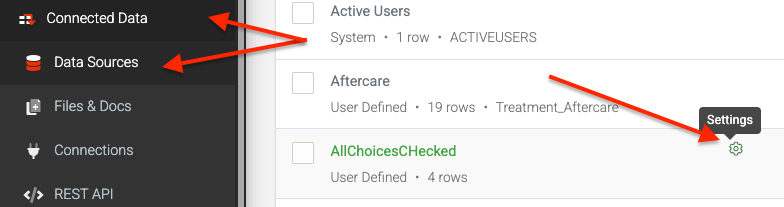
- Navigate the side menu to Data Hub > Data Sources
- Hover over a form and click the “Settings” icon link ()
- In Settings, hit the “Add Connector” button
- Select the relevant option to add the connector
This will refresh the page with the newly added connector ready for configuration.
Nothing has been saved at this stage, so save your connector after making any changes to enable or update it.
Alternatively, if you’re viewing the rows of a data source, you can navigate to the Settings page using the option under the page’s title.
Configuring
Next, Configure the following
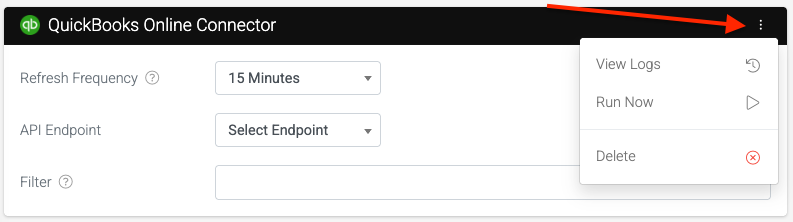
Refresh Frequency
The time interval during which data is pulled and refreshed by this connector.
API Endpoint
Select the API Endpoint: Class, Customer, Invoice, and Time Activity.
Filter
Add an optional filter clause to the query that only returns desired records.
e.g WHERE Lastname = ‘Good’
When you save your changes, the connector will be fired for the first time, and after that, it will run at the refresh frequency you specified in the connector settings.
Wait a minute or so, or click the three-dot menu ( ) and access the RUN NOW to manually trigger the connector and check the Rows in your data source.
If the rows were not downloaded, there may be an error with the file’s data or permissions to access it. To identify and resolve the issue, you can review the logs by clicking the three-dot menu ( ) and selecting VIEW LOGS.
Once resolved, you can run the connector again and confirm that the rows have been successfully downloaded