
A Google Drive data source connector synchronizes a data source with a Google Drive spreadsheet. Any changes made to the Google Spreadsheet will be updated on the data source on the platform. Synchronization can occur in as little as 15 minutes.
Your data source will be automatically updated in this way until you remove the connector or an error occurs (such as losing authorization to access the Spreadsheet).
Google Spreadsheet currently has a limit of 5,000,000 cells per spreadsheet, and our platform currently supports a maximum of 50 columns and 50,000 rows.
If your data source exceeds this limit, you will need to consider an alternative connector.
To set up a Google Drive connection, you will first need a Google connection established in Connected Data > Connections. Please take a look at this article for details.
Data Source Settings
To set up a Google Drive connection to your data source, create a data source or navigate to an existing data source. (Bear in mind that any new data pulled into an existing data source by the connection will overwrite the existing data in the table.) Go to the data source settings page, then under Connector, click + Add Connector and choose Google Drive.

Within the connector section that will now show, enter the data into the associated fields.
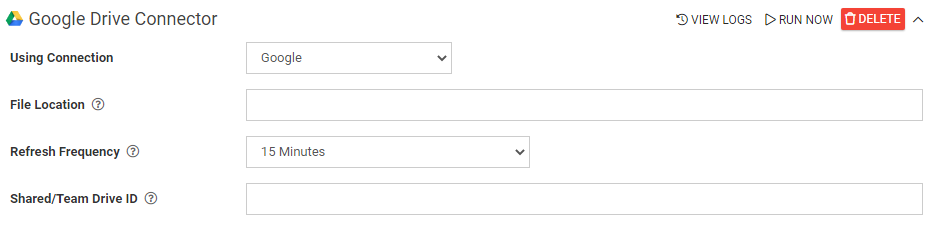
- Using Connection: Choose the connection to use. This is relevant if multiple Google connections are set up in Connections.
- Spreadsheet Name: Write the exact name of the Google spreadsheet from which you want to pull data.
- File Location: Type the folder path and filename/extension of the file containing the data to be synced. Omit the top-level Shared Drive directory and include only subfolders (if any), plus the file name and extension (if applicable). This is relevant only if your spreadsheet is located in a subfolder of your Google Drive. Use the following format: "FolderName/Folder2/SpreadsheetFolder."
- Refresh Frequency: Choose the frequency at which the data in the data source will be synced with the data in the hosted file on Google Drive. The maximum frequency is 15 minutes.
- Shared/Team Drive ID: Enter the unique identifier of the Shared Drive on Google if the file being synced exists in a Shared Drive. To retrieve the ID, open your Google Drive in a web browser and navigate to the top-level Shared Drive folder (even if the destination folder is a subfolder within the Shared Drive). Next, check the address bar of your web browser and copy the characters that follow the “/folders/” part of the URL. E.g., if the URL is https://drive.google.com/drive/folders/1234567890ABCDEFGHI, then the drive ID is 1234567890ABCDEFGHI.
Note that this applies only to an entire Google Shared Drive, not just a single file or folder. Shared Drives are currently available to G Suite Business accounts.
Once all the above details have been entered, click "SAVE" in the upper-right corner of the page. Once the page has refreshed, in the Google Drive Connector, click "Run Now." Wait a moment, then click "View Logs" to verify the sync was successful. Once the initial sync has completed, the connector will operate at the specified frequency.
Sync Interruption
If at any point the hosted file is removed or another issue interrupts a scheduled sync, the platform will attempt to sync several times before eventually reporting an error. At this point, the automatic sync will end. A connection must be re-established by clicking "Run Now" again; if this manual sync is successful, automatic syncing will resume.